
April 10, 2026
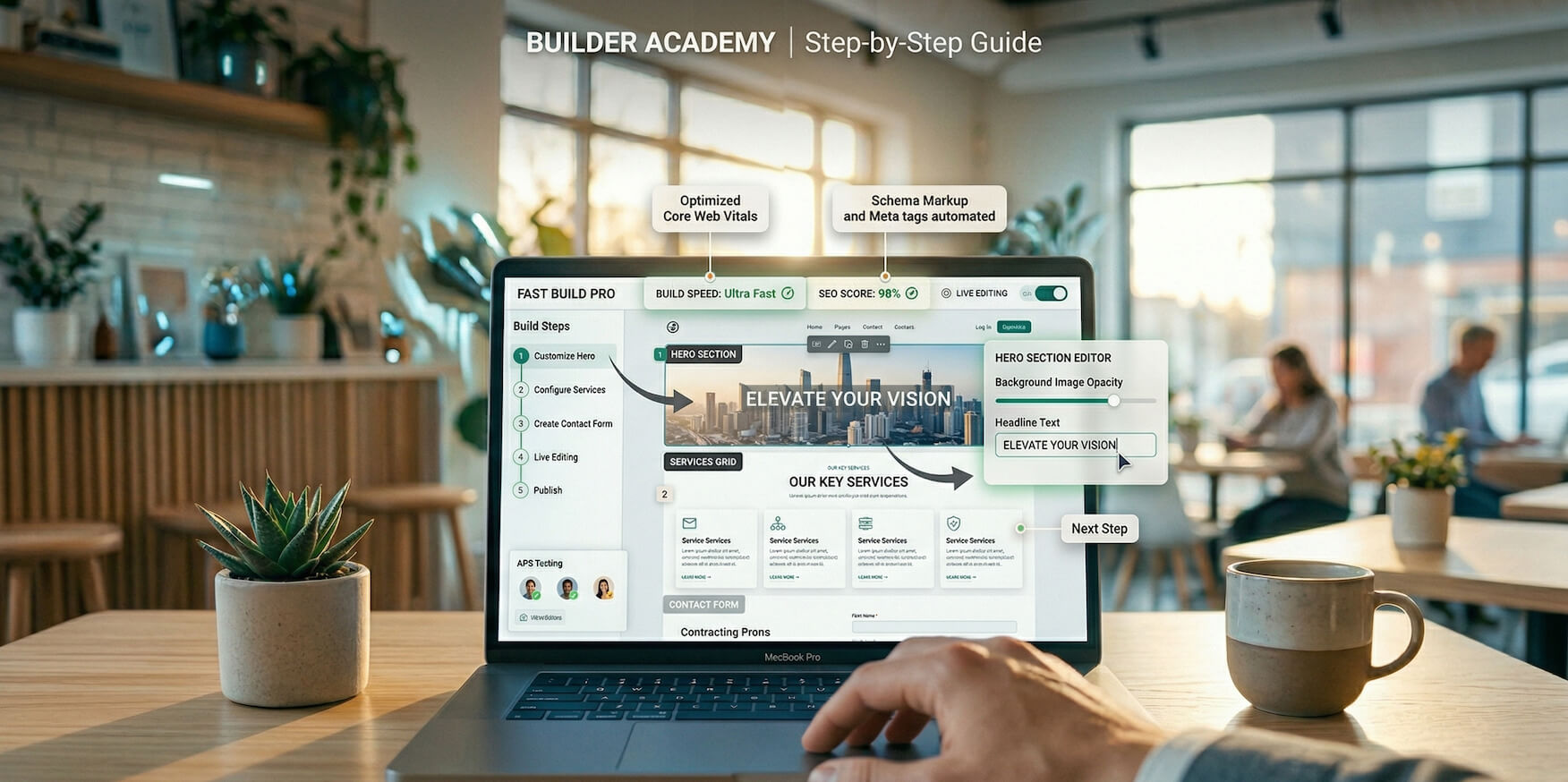
If you’re considering a website builder, there’s one question that matters more than features, pricing, or templates:
“What does it actually feel like to use?”
Because at the end of the day, the best tool isn’t the one with the most features—it’s the one you can actually use quickly and confidently.
That’s exactly what this hands-on demo of RocketPages is designed to show you.
Instead of just listing features, we’ll walk through the real experience of building a website step by step, just like a beginner would—and show what kind of result you can expect at the end.
Before diving into the demo, it’s important to understand why RocketPages feels different from most website builders.
Most platforms follow this flow:
Sign up → Verify email → Choose plan → Open dashboard → Start building
RocketPages flips that completely:
Open builder → Start editing → Explore freely → Sign up only when ready
This creates a low-pressure, high-speed building experience—which is rare.
Let’s walk through exactly what happens when you use RocketPages for the first time.
The first thing you’ll notice is how quickly you can start.
There’s:
You simply open a template—and you’re already inside the builder.
It feels less like “setting up software” and more like opening a document and starting to edit.
This removes one of the biggest friction points in website creation.
Once inside, you select a template that matches your use case.
Templates are designed with real-world structures in mind, such as:
You’re not staring at a blank screen.
You’re starting with a complete, usable website structure that only needs customization.
This is where RocketPages truly stands out.
Instead of navigating menus or sidebars, everything happens directly on the page.
It feels similar to editing a slide in PowerPoint or a document—simple, immediate, and visual.
There’s no disconnect between editing and previewing.
What you see is exactly what your visitors will see.
As your website grows, you’ll need more content—and this is handled through sections.
Think of sections as building blocks.
Instead of designing layouts manually, you’re assembling proven structures.
This reduces design mistakes and speeds up the entire process.
A good website isn’t just text—it’s visual.
RocketPages makes adding media straightforward:
Especially useful for portfolios and service businesses.
One of the biggest concerns for beginners is: “Will my website look good on mobile?”
With RocketPages, the answer is handled automatically.
Even though it’s automatic, a quick review ensures a polished result.
This is the only moment where you need to create an account.
You’ve already done the work.
Signing up becomes a final step—not a barrier to entry.
Let’s look at what a real website created with RocketPages typically includes.
A standard structure looks like this:
This structure is simple—but highly effective.
The templates in RocketPages are not random—they follow proven conversion principles.
Instead of designing from scratch, you’re following a system that already works.
After completing the process, your website will typically feel:
Most importantly: It feels like a professionally built website—even if you created it yourself in minutes.
Let’s break down the actual time required:
Total: ~10–15 minutes
This isn’t just a claim—it’s realistic if you stay focused.
What makes this speed possible?
RocketPages simplifies the process by combining:
This eliminates the need for:
To keep things honest, RocketPages is not perfect.
Limitations include:
It’s built for: Speed, simplicity, and practicality—not complexity.
To get the best results:
The simpler your approach, the better the result.
Yes—especially if you’ve struggled with website builders before.
It’s one of the few platforms where you can go from: idea → working website in a single session
Most website builders promise simplicity—but still feel complicated once you start using them.
RocketPages takes a different approach: It simplifies the experience itself.
And once you try the demo, you immediately understand why.
Because instead of learning the tool…
You’re already building your website.
Stay up to date with the latest tips, expert insights, product reviews, and step-by-step guides to help you grow, create, and succeed—no matter your industry or passion.